Important user information
This manual explains how to install, operate and configure a SERIP-100. This device may only be used for the applications described in this document.
This manual is to be used with a SERIP-100 with firmware version 2.2.
These instructions are intended for use by trained specialists in electrical installation and control and automation engineering, who are familiar with the applicable national standards and safety procedures.
Safety Precautions

|
ELECTRICAL HAZARD
Failure to follow these instructions could result in death or serious injury! |
Document conventions
Throughout this manual we use the following symbols and typefaces to make you aware of safety or other important considerations:

|
Indicates a potentially hazardous situation that, if not avoided, could result in death or serious injury. |

|
Indicates a potentially hazardous situation that, if not avoided, could result in damage to equipment. |

|
Indicates information that is critical for successful application and understanding of the product. |

|
Provides other helpful user information that does not fall in above categories. |

|
Provides supplemental user information. |
|
Acronym
|
This typeface is used to introduce acronyms or product names. |
|
Command
|
This typeface is used to represent commands, prompts, input fields and filenames. In the context of programming it is used for functions, variable names, constants or class names. |
|
Placeholder
|
This typeface is used to represent replacable text. Replaceable text is a placeholder for data you have to provide, like filenames or command line arguments. |
|
User input
|
This typeface is used to represent data entered by the user or buttons. |
Screen output |
Screen output or program listing |
Introduction
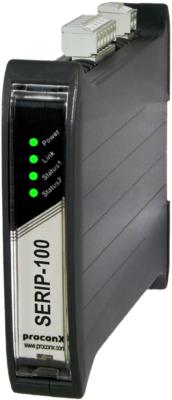
SERIP-100 is a serial to Ethernet interface converter. The unit enables serial devices to connect to an IP-based Ethernet LAN.
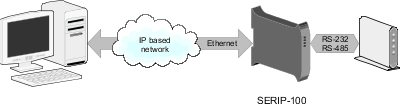
The SERIP-100 receives data on the serial port, converts the data stream into either a TCP or UDP packet and transmits the packet via the Ethernet network. Vice versa, data contained in packets received on the network interface are transmitted on the serial port.
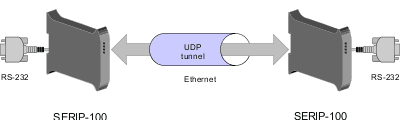
Two SERIP-100 operating in UDP tunneling mode can be used to overcome the length limitation of RS-232 and to connect two serial devices utilizing IP network infrastructure.
Configuration of the gateway is simple and conveniently performed using a web browser which connects to the embedded web server.
The unit’s firmware adheres to the Internet Standards (RFCs) as close a possible. This provides it with a high degree of compatibility with a broad range of available commercial and open source middleware, drivers and utilities.
Features
The SERIP-100 gateway provides the following key features:
-
Versatile modes of operation (Server, Client, UDP tunnel)
-
Telnet protocol compliant (any port)
-
Includes SERIP Toolkit with virtual COM port redirector software for Windows operating systems
-
Compatible with the ttyd virtual device driver and Termpkg package for Linux
-
Embedded web server for easy configuration and commissioning using a web browser
-
Firmware upgradeable via Ethernet
-
DIN rail mountable
-
24 V DC (10-30 V) power supply
-
Status LEDs for power, Ethernet link and communication status
Quick start checklist
-
Read this set of instructions properly and in its entirety.
-
Mount the unit.
-
Connect the power. Do not connect yet serial ports.
-
Configure the Ethernet communications settings with a web browser (using an Ethernet crossover cable) or with a terminal program like HyperTerminal (using a null modem cable)
-
Configure the serial line communication settings.
-
Configure the operational aspects of the device.
-
Wire serial line interfaces.
Description
The power and RS-485/RS-422 terminals are placed on the top side of the unit. The RS-232 and Ethernet connectors are placed on the bottom side of the unit as shown in the following illustration:
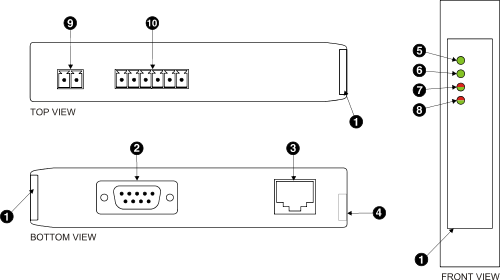
 Clear front cover
 RS-232 connector
 Ethernet connector
 DIN rail clip
 Power LED
 Ethernet link LED
 Status 1 LED
 Status 2 LED
 Power terminals
 RS-485/RS-422 terminals
LED indicators
Four LEDs located at the front panel indicate the status of the device. The LEDs assist maintenance personnel in quickly identifying wiring or communication errors.
A LED test is exercised at power-up, cycling each LED off, green and then red for approximately 0.25 seconds. At the same time the power-on self test of the device is performed.
The following table outlines the indicator condition and the corresponding status after the power-on self test has been completed:
| LED | Function | Condition | Indication |
|---|---|---|---|
Power |
Power |
Off |
No power applied to the device. |
Green |
Power supply OK |
||
Link |
Ethernet link |
Off |
No Ethernet link |
Green |
Ethernet link OK |
||
Status1 |
Device status |
Off |
No Ethernet connection. No data on serial port. |
Flashing green |
Connection on Ethernet but no data transmission or reception on serial port. |
||
Green |
Connection on Ethernet and data transmitting or receiving on serial port. |
||
Flashing red |
No connection on Ethernet but data is received on serial port. |
||
Red |
The device has an unrecoverable fault; may need replacing. Flashing sequence and rate of Status2 LED indicates fault class. |
Operating modes
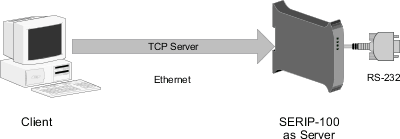
TCP Server mode
The SERIP-100 operates as a server listening on the configured TCP port for connections from a client. As soon as one client is connected, it will receive the serial port data stream via TCP. Any data sent to the SERIP-100 by the client will be forwarded to the serial port.
Telnet Server mode
The Telnet Server mode is similar to the TCP Server mode but offers in addition support for the Telnet protocol. This means all characters received or transmitted on the TCP connection are encoded with the Telnet protocol.
The Telnet Server mode is the most commonly used mode and is utilised by the telnet utility as well as serial port redirectors and virtual serial port device drivers.
TCP Client mode
The client mode is the opposite of the server mode and requires a TCP server to connect to. After a connection to the nominated server has been established, any data received on the serial port is delivered to the server as TCP data stream. Any data sent to SERIP-100 by the server will be forwarded to the serial port. The SERIP-100 will automatically re-connect to the specified Server if the connection has been lost.
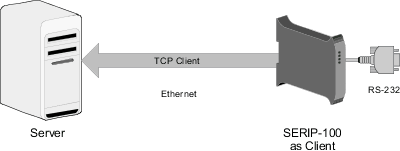
Telnet Client mode
The Telnet Client mode is similar to the TCP Client mode but offers in addition support for the Telnet protocol. This means all characters received or transmitted on the TCP connection are encoded with the Telnet protocol. This mode is also known as reverse Telnet.
Client/Server operation
Two SERIP-100 can be combined using the TCP protocol while one is working in server mode and the other peer in client mode. Client/Server operation is typically used to connect two SERIP-100 in order to extend the range of a RS-232 link.
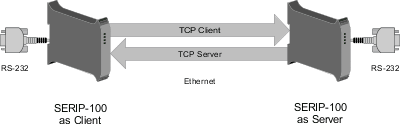
UDP tunneling
This mode utilises the UDP protocol for receiving and sending data. It does not require a connection between a server and a client, instead it requires a nominated peer where to send data. Any data received on the nominated UDP port is streamed to the serial port. If data is received on the serial port, it is embedded into a UDP packet and sent to the nominated peer. UDP tunneling supports broadcasting of received serial data to the local subnet. For broadcasting enter 255.255.255.255 as Peer IP Address. UDP tunneling is typically used to connect two SERIP-100 in order to extend the range of a RS-232 link.
Installation
Regulatory notes
|
|
|
This equipment has been tested and found to comply with the limits for a Class A digital device, pursuant to Part 15 of the FCC Rules. These limits are designed to provide reasonable protection against harmful interference when the equipment is operated in a commercial environment. This equipment generates, uses, and can radiate radio frequency energy and, if not installed and used in accordance with the instruction manual, may cause harmful interference to radio communications. Operation of this equipment in a residential area is likely to cause harmful interference in which case the user will be required to correct the interference at his own expense.
This Class A digital apparatus complies with Canadian ICES-003.
Unpacking, handling and storage
|
|
|
Before connecting anything
|
|
|
DIN rail mounting and removal
The SERIP-100 gateway is designed to be mounted on a 35 mm DIN rail according to DIN/EN 50022. The enclosure features a 35 mm profile at the back which snaps into the DIN rail. No tools are required for mounting. Please observe the rules outlined in [Mounting].

|
To mount the unit on a DIN rail, slot the top part of the SERIP-100 into the upper guide of the rail and lower the enclosure until the bottom of the red hook clicks into place. |

|
To remove the SERIP-100 from the DIN rail, use a screw driver as a lever by inserting it in the small slot of the red hook and push the red hook downwards. Then remove the unit from the rail by raising the bottom front edge of the enclosure. |
Mounting rules
The enclosure provides protection against solid objects according to IP 20 / NEMA Type 1 protection rating. When mounting the unit observe the following rules:
|
|
|
Powering the SERIP-100
|
|
Before connecting power please follow the rules in [Safety] and [Connecting]. |
Power is supplied via a 3.81 mm 2-pin pluggable terminal block located at the top side of the mounted unit (refer to [DescriptionDiagram]). The following table and picture shows the power terminal socket pinout:

|
|

|
Make sure that the polarity of the supply voltage is correct before connecting any device to the serial ports! A wrong polarity can cause high currents on the ground plane between the V- power supply pin and the serial port ground pins, which can cause damage to the device. |
Wiring the RS-485/RS-422 interface
The gateway’s serial port can be configured by software to use the RS-485 or RS-422 physical layer. This is done through the web interface (See [SerialConfig]).
The RS-485 and RS-422 signals are located at the 3.81 mm 6-pin pluggable terminal block on the top side of the mounted unit (refer to [DescriptionDiagram]). The following table and picture shows the pinout:

RS-485 
RS-422 |
|
-
Line termination is required and is typically done with a 120 Ohm 1/4 W resistor. For RS-485 operation the bus must be terminated at both ends. For RS-422 operation a termination resistor must be inserted between the RX+/RX- signals.
-
Maximum number of RS-485 nodes without repeater is 32.
-
Stub connections off the main line should be avoided if possible or at least be kept as short as possible. Stub connections must not have terminating resistors.
-
Maximum cable length to 1200 m (4000 ft).
-
To assure a high degree of electromagnetic compatibility and surge protection the cable should be twisted pairs and shielded. An additional cable conductor or pair may be used for the GND reference.
|
|
Do not connect the cable shield to the GND pins! Use an external chassis ground connection to terminate the shield. |
Wiring the RS-232 interface
The use of the RS-232 interface must be configured using the web interface (See [SerialConfig]).
The RS-232 connector is a male 9-pin D-sub type located at the bottom side of the mounted unit (refer to [DescriptionDiagram]). It has industry standard EIA-574 data terminal equipment (DTE) pinout as shown in the following table and picture:

|
|
-
Maximum cable length is 15 m (50 ft) or a length equal to a line capacitance of 2500 pF, both at the maximum standard bit rate of 20 kbps. If operating at higher bit rates the maximum cable length drops to 3 m (10 ft) at a bit rate of 57.6 kbps.
-
To assure a high degree of electromagnetic compatibility and surge protection the RS-232 cable should shielded. The shield shall be connected to an external chassis ground at the either or both ends, depending on the application.
-
The shield must not be connected to the GND pin.

|
To connect the SERIP-100 to a PC (Personal Computer) or any other device with data terminal equipment (DTE) pinout you need a null-modem or cross-over cable. |
Connecting Ethernet
The following table describes the 10BASE-T Ethernet RJ-45 connector pinout:

|
|
-
We recommend to use Category 5 UTP network cable.
-
Maximum cable length is 100 m (3000 ft).
Ethernet & IP configuration
Before configuring the SERIP-100, obtain a unique static IP address, subnet mask, and default gateway address from your network administrator.
The factory default IP address of the SERIP-100 is 169.254.0.10 which is in the Automatic Private IP Addressing (APIPA) address range.
There are several methods of configuring the unit’s IP address:
-
Removing your PC from your corporate network and using a cross-over network cable (see [ConfigCrossOver]).
-
Via the Serial Port 1 and a terminal program like HyperTerminal (see [ConfigTerminal]).
-
Leaving your PC connected to your corporate network and temporarily changing the IP settings on your PC to match the subnet of the SERIP-100 (see [ConfigChangeIP]).
|
|
In order to connect to the SERIP-100 via TCP/IP, your PC must be on same IP subnet as the gateway. In most situations this means that the first three numbers of the IP address have to be identical. |
IP setup using a web browser and a cross-over network cable
This method applies only to operating systems like Windows, which support APIPA (Automatic Private IP Addressing). It also requires your PC to be configured for DHCP. If your computer is configured with a static IP address, follow the procedure in [ConfigChangeIP].
-
Disconnect your PC from your corporate network. If your computer is configured for DHCP it should now automatically fall back to use a default IP address from the APIPA range 169.254.x.x (Windows PCs only).
-
Connect an Ethernet crossover cable from the SERIP-100 to the computer.
-
Start Internet Explorer.
-
In the address box, type 169.254.0.10 and then press Enter.
-
Click Configuration… and then Ethernet & IP in the menu on the left side of the page.
-
Enter the IP address, subnet mask, and gateway address assigned to your SERIP-100, then click Save.
-
Reconnect your computer to your corporate network.
IP setup using a terminal program like HyperTerminal
-
Connect a null modem RS-232 cable between your PC and the SERIP-100's Serial Port 1.
-
In Windows XP, click Start, point to All Programs, point to Accessories, point to Communications, and then click HyperTerminal.
-
When HyperTerminal starts, it opens a dialog box and asks for a name for the new connection. Enter a name (for example, deviceconfig) then click OK.
-
The Connect to dialog opens. Select the COM port you will be using in the Connect using drop-down list box, then click OK.
-
Select 9600, 8, None, 1, None in the COM Properties dialog, then click OK.
-
HyperTerminal is now connected to the serial line.
-
Keep the space bar pressed in HyperTerminal and power-cycle your device at the same time.
-
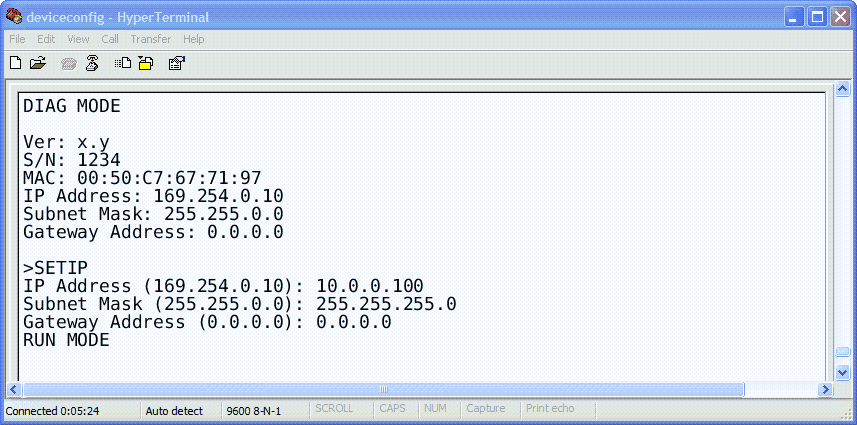
A menu should appear after one or two seconds showing device information, the current IP configuration and a > prompt.
-
Type SETIP, then press Enter within 10 seconds after the prompt is shown:
-
The device will show current values and prompt for new values for IP address, net mask and gateway address. Enter the new values and press Enter. A key press must be received at least every 10 seconds otherwise the device will go back to RUN MODE and resume normal operation.
-
The gateway will return to the main prompt. Type X and press Enter to leave DIAG MODE and resume normal operation indicated with RUN MODE.
Temporarily changing the IP settings on your PC
This method involves manually assigning an IP address to your PC in the same subnet as the gateway. The default subnet of the gateway is 169.254.0.0/16.
-
Connect the SERIP-100 to your Ethernet network.
-
On a Windows PC, open the Control Panel and double-click on Network Connections. Right-click on the Network Connection associated with your network adapter and select Properties:

This will show the Local Area Connection Properties Dialog:

-
Select the Internet Protocol (TCP/IP) entry and click on Properties to open the TCP/IP Properties dialog as shown below:

-
Write down your current settings so they can be restored later.
-
Select Use the following IP address and configure a static IP address in the same subnet as the device, for example 169.254.0.1 and the subnet mask 255.255.0.0. Click OK to save the changes.
-
Start Internet Explorer.
-
In the address box, type 169.254.0.10 and then press Enter.
-
Click Configuration… and then Ethernet & IP in the menu on the left side of the page.
-
Enter the IP address, subnet mask, and gateway address assigned to your SERIP-100, then click Save.
-
Restore your computer’s original settings.
Web browser based management
The SERIP-100 incorporates an embedded web server. This allows you to connect to the device and monitor and configure it using a web browser. Most browsers should work, provided they support JavaScript. We recommend Internet Explorer 6.0 or higher.
Connecting to the SERIP-100
Once you made sure that your PC is configured to be on the same subnet as the SERIP-100, start your web browser. In the address box, type the IP address of your device (169.254.0.10 is the default), and then press Enter. (See [EthernetConfig])
The web browser will establish communication with the embedded web server and an overview page similar to the following picture will appear:
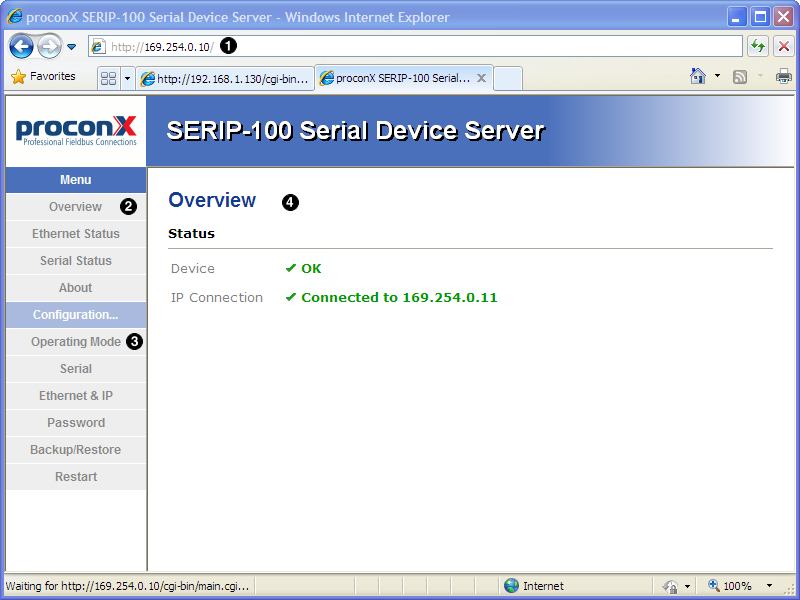 Gateway IP address
Main menu
Configuration sub-menu
Information area
Gateway IP address
Main menu
Configuration sub-menu
Information areaUse the menu bar shown on the left side to navigate the different pages.
|
|
In order to connect to the SERIP-100 via TCP/IP, your PC must be on same IP subnet as the gateway. In most situations this means that the first three numbers of the IP address have to be identical. |
Monitoring and diagnostic
The SERIP-100 offers several web pages which allow monitoring of the status of the different communication networks and the device performance.
Device status
The Overview page shows the principal device status as shown in the following picture:
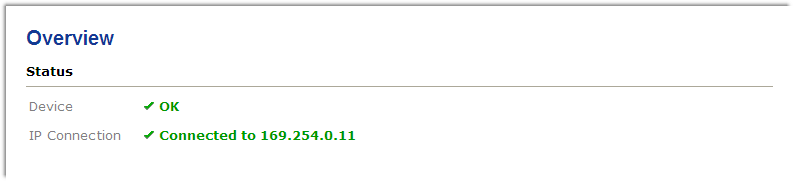
The value shown in the Device row represents the device status register which keeps track of run-time faults. All run-time faults are latched and must be reset by the user. The following faults can be listed here:
- OK
-
The device is fault free.
- Watchdog reset
-
This warning indicates that the device was reset by it’s internal watchdog supervision circuit.
- Brown out reset
-
This warning indicates that the device was reset by it’s internal supply voltage monitoring circuit. This fault occurs when the supply voltage drops below the lower limit.
- Device out of memory
-
This warning indicates that the internal dynamic memory has been exhausted and due to this a certain function could not be completed.
- Device configuration data write failure
-
This alarm indicates that the configuration data could not be written to the non-volatile memory. Configuration data changes will be lost once the device is power-cycled or reset.
- Reset to factory defaults
-
This alarm indicates that the device' configuration data was reset to factory defaults. The device requires re-commissioning.
Ethernet status
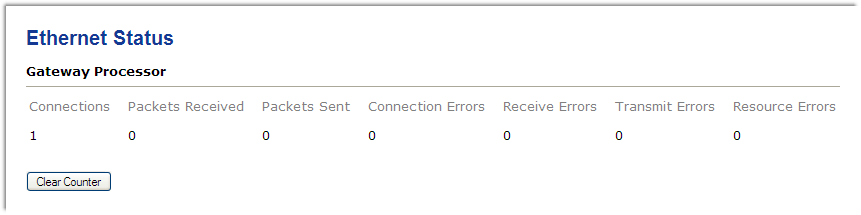
The Ethernet Status page shows status and statistics about the Ethernet traffic. These values provide valuable information used to troubleshoot network problems. This page is automatically updated every 5 seconds.
|
|
This page shows accumulated readings since the SERIP-100 was last activated or reset. If power to the SERIP-100 is lost, all cumulative values are reset to zero. |
The following statistics are maintained:
- Connections
-
A counter that increments each time a client or server connects to the gateway.
- Packets Received
-
A counter that increments each time an inbound message is successfully received.
- Packets Sent
-
A counter that is incremented each time an outbound message leaves.
- Connection Errors
-
This counter applies to client modes only. It is incremented each time a connection attempt failed.
- Receive Errors
-
Number of errors while receiving an inbound packet from the network.
- Transmit Errors
-
Number of errors while sending an outbound packet to the network.
- Resource Errors
-
Counter of low memory resource situations.
The cumulative diagnostic data is reset when the device is power cycled or reset. The data is also reset by pressing the Clear Counter button.
Finding the firmware version and serial number
Click on the About menu entry on the menu bar to show the product information as shown below:
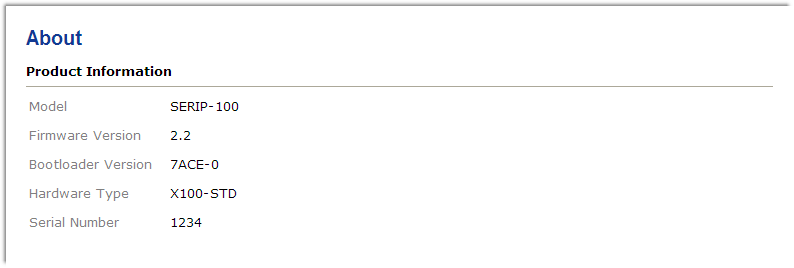
This product information is important for service and support inquiries. The following product information is provided:
- Model
-
The model name of the product. The Model defines the functionality of the product.
- Firmware Version
-
The firmware version that is installed.
- Bootloader Version
-
The version of the Ethernet bootloader. This is relevant for firmware upgrades.
- Hardware Type
-
Type of hardware the SERIP-100 is based on. The Type is relevant to identify the device for regulatory compliance.
- Serial Number
-
The serial number of the SERIP-100. The serial number is specific to your device.
Configuring and commissioning
The configuration pages are accessed by clicking on the Configuration… menu entry on the menu bar which then expands a configuration sub-menu. All configuration settings are kept in the device non-volatile memory.
|
|
If you make changes to any settings, remember to save each page before changing to a different page! |
Configuring Ethernet and IP
Select the Configuration→Ethernet & IP sub-menu from the menu bar to open the Ethernet and IP settings which are shown below:
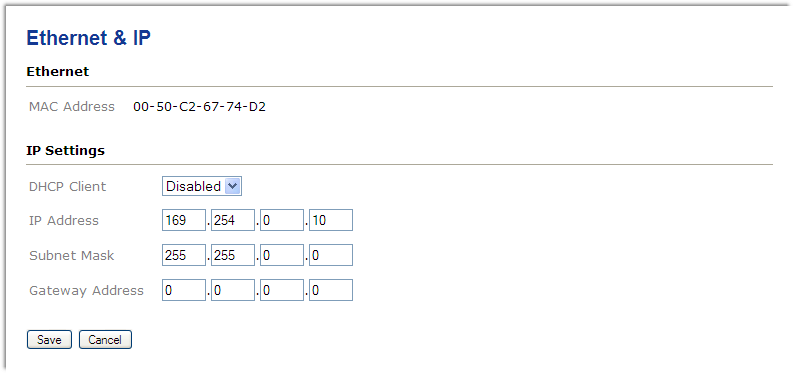
The following Ethernet parameters are shown:
- MAC Address
-
The device' unique MAC address. This number is hard coded and cannot be changed.
The following Internet protocol (IP) settings can be entered:
- DHCP Client
-
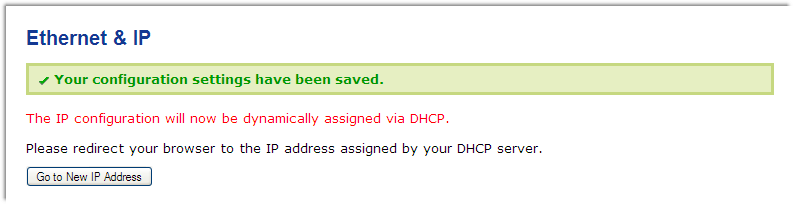
Select Enabled to have the IP address assigned via DHCP. When enabling this option it is important to have a reliable DHCP server available in the network at all times. The SERIP-100 will not communicate without an IP address. A missing IP address is indicated with a distinct LED diagnostic code.
- IP Address
-
The static IP address assigned to this device if DHCP is not used. This IP address is different to the IP address assigned through DHCP.
- Subnet Mask (also known as network mask)
-
If you have a router, enter the subnet mask for the segment to which this device is attached.
- Gateway Address
-
If your network segment has a router, enter its IP address here. Otherwise leave the address as 0.0.0.0.
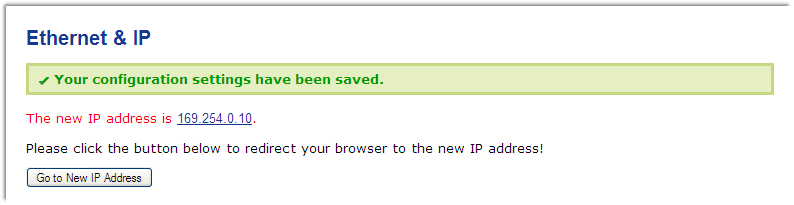
Once you click Save the new settings are stored and applied instantly. Existing TCP/IP connections to the device are terminated and must be re-established using the new IP address.
The new settings are confirmed with the following page:

|
Please write down the new IP address so you are able to communicate with the device in the future! |
Configuring Operating mode
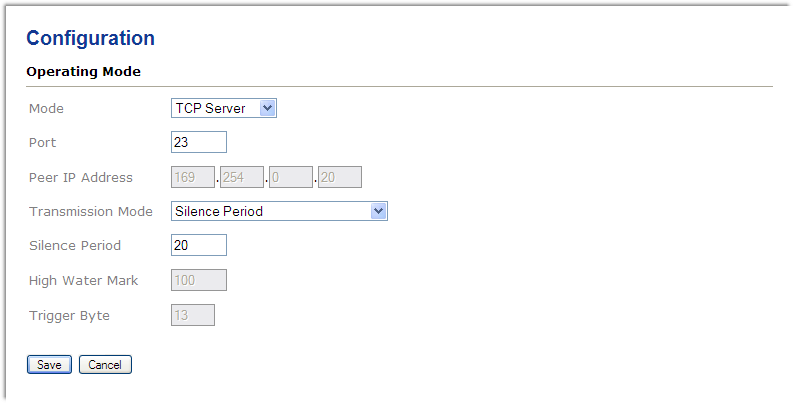
- Mode
-
The SERIP-100 gateway can operate in different modes. Refer to [Operation] for more details about the various operating modes. If used in conjunction with a virtual serial port redirector software, this should be set to Telnet Server or TCP Server. Both Telnet and TCP modes operate over the TCP protocol but the two Telnet modes offer support for the Telnet protocol. If two gateways are used to extend a serial link UDP tunnel is the best choice.
- Port
-
Set this to the TCP or UDP port the gateway shall use for Ethernet connections.
- Peer IP Address
-
The IP address of a server the gateway shall connect to if in client mode or if in UDP mode the IP address the gateway accepts UDP packets from. Only used in client modes or UDP mode.
- Transmission Mode
-
Data received on the serial port is internally buffered. Different methods can be chosen to determine when the buffered data is transmitted via the Ethernet link. Buffering can be disabled by setting transmission mode to Immediate. The various transmission settings allow fine-tuning and optimisation of the Ethernet traffic generated by the gateway. This helps reducing the amount of Ethernet traffic as multiple data bytes are consolidated into one Ethernet packet.
- Silence Period
-
This setting can only be changed if transmission mode is set to any of the silence period options. If enabled data received on the serial port is buffered and only transmitted once no character has been received for the configured silence period.
- High Water Mark
-
This setting can only be changed if transmission mode is set to any of the high water mark options. If enabled data received on the serial port is buffered and only transmitted once the amount of buffered characters has reached the high water mark setting. In any case the internal buffer is always emptied after 1 s.
- Trigger Byte
-
This setting can only be changed if transmission mode is set to any of the trigger byte options. If enabled it defines the decimal value (ASCII) of a trigger byte. Upon reception of this character on the serial port, the internal buffer is transmitted over the Ethernet link. Common choices is the return character (CR, 13) for line mode transmission or end of text (ETX, 3) for block oriented protocols. In any case the internal buffer is always emptied after 1 s.
Configuring serial port
The serial port settings must be configured to match the settings of your serial device. Select the Configuration→Serial sub-menu from the menu bar to open the serial settings which are shown below:
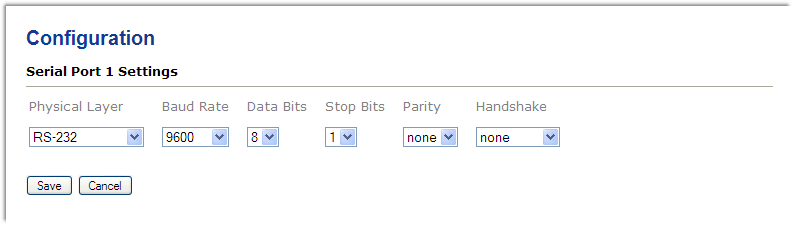
The following serial settings can be entered:
- Physical layer
-
Can be set to two-wire RS-485, RS-422 or RS-232 mode. RS-232 is the default. Depending on this setting either the D-sub (RS-232) connector or the terminal block connector (RS-485/422) of the SERIP-100 is utilized.
- Baud rate
-
Communication speed
- Data bits
-
Number of transmitted data bits
- Stop bits
-
Can be configured to be 1 or 2.
- Parity
-
Changes parity mode to either none, even or odd.
- Handshake
-
RTS/CTS handshake can be enabled to to perform flow control between the SERIP-100 gateway and the serial device (RS-232 only).
Once you click Save the new settings are stored and applied instantly. A confirmation message is shown.
Remote restarting the device
You can perform a remote restart of the device from the web interface. A remote restart is similar to power cycling the device. Possibly connected clients are disconnected and communication is interrupted until the device has rebooted.
To perform a remote restart, click on the Configuration sub-menu and then click on the Restart menu entry. This will open the device restart page as shown below:
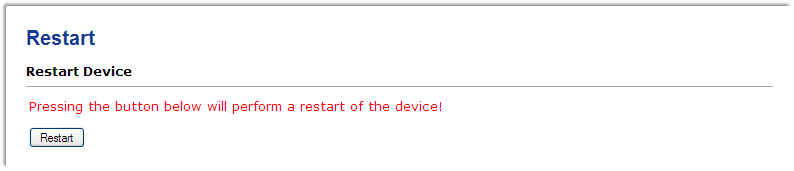
Click on the Restart button to perform a restart of the device. The restart is confirmed with the following notification:
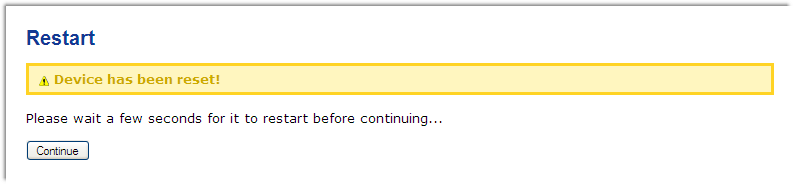
Please allow a few seconds before continuing working with the device as it has to fully start-up first, before being able to respond to further web browser requests.
|
|
After a remote restart a Watchdog reset alarm is shown on the device' home page. This is a side-effect of the remote restart procedure and the alarm shall be ignored and cleared. |
Backup and restoring of configuration settings
The SERIP-100 allows configuration settings to be uploaded onto a PC.
This is a beneficial for archiving purposes but also allows easy deployment of similar devices by the means of loading settings from a previously stored reference device.
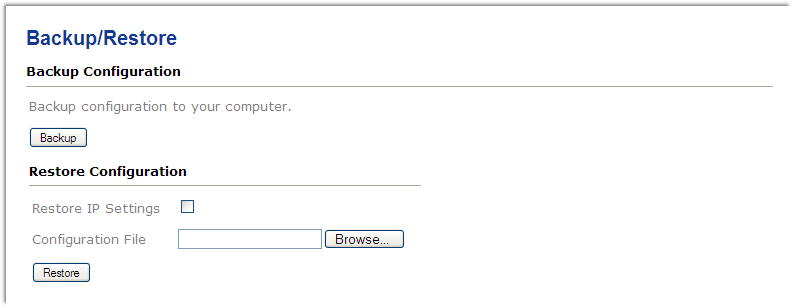
To store the configuration settings on your PC, click on the Configuration sub-menu and then click on the Backup/Restore menu entry. Then click on Backup. Your web browser will open a file download dialog which allows you to save the configuration file on your PC. The file name of the configuration file reflects the model name and the serial number and has the .config extension.
|
|
In case the configuration is password protected, the username and password will not be stored in the configuration file! |
To restore the settings from a configuration file, click on the Browse button and select a .config file matching the model of your device. Then click on Restore.
There are two options to restore a previously saved configuration set:
- Restore IP Settings un-checked
-
Default. All but the IP settings are restored. This option is useful when device settings shall be duplicated onto another device which will operate on the same network and hence requires its own distinct IP settings.
- Restore IP Settings checked
-
The complete settings are restored. This option is useful if a device is replaced with a new device and the new device should inherit the previously set IP address.
The successful restoration of configuration settings is confirmed with the following message:
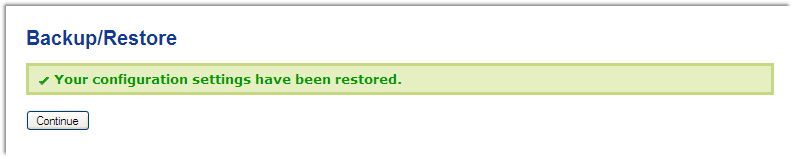
In case of an error message, the settings may have only been partially restored and it is important to review all the settings for correctness.
Password protection
Access to the configuration pages can be protected with a password. To configure a password, click on the Configuration sub-menu and then click on the Password menu entry.
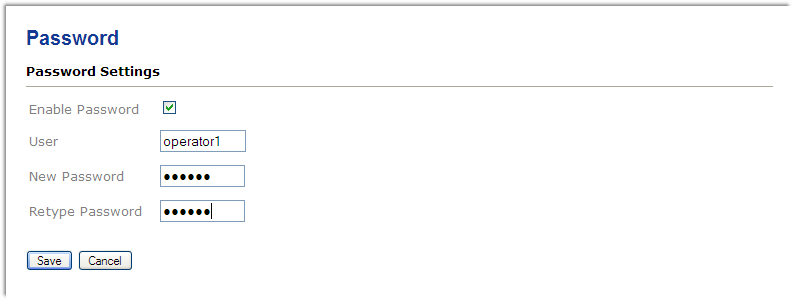
To enable a password, check the Enable Password checkbox and enter a user name and a password in the form. The password must be entered twice to make sure it is typed correctly. Click Save to confirm the password.
Only one password protected user can be configured. If a new user and password is entered the previous user name is deleted.
|
|
Make sure you record or memorize the username and password before you press the Save button! The only way to recover from a lost password is by resetting the device to factory defaults which requires physical access to the device. |
To log on to password protected configuration pages, click on a configuration menu entry. The web browser will open a password dialog similar to the one shown below:
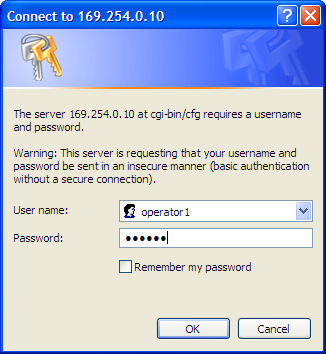
To remove password protection, log on, uncheck the Enable Password checkbox and click Save to confirm.
Firmware upgrade
The unit’s firmware can be upgraded via Ethernet.
Please contact us for an Application Note describing the upgrade procedure and for required software tools.
Virtual COM port redirector
A virtual COM port redirector software package called SERIP Toolkit is provided for Windows PCs.
servers is managed by the SERIP COM Manager program, the control centre for the SERIP Toolkit. The SERIP Toolkit is using three components to provide the connectivity between
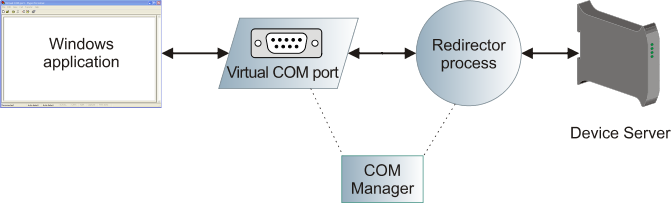
The first component is a virtual COM port device driver which emulates a physical serial port. Windows applications can open and read or write data to virtual COM ports similar to a real COM port. From an application’s perspective there is no difference between a real COM port and a virtual one. The SERIP COM Manager allows up to 255 COM ports to be created.
The second component is a redirector. The redirector is a background process responsible for connecting the virtual COM port with a remote serial device server. A redirector is always attached to a virtual COM port and can be either in stopped, idle or connected state.
The third component is the SERIP COM Manager application. The SERIP COM Manager application is used to configure both Virtual COM Port and Redirector. It is also responsible for automatic starting of the redirector processes during the start-up of the computer.
Installing the SERIP Toolkit
|
|
The SERIP Toolkit can be installed on the following versions of the Windows operating system: Windows 2000, Windows XP, Windows Vista, Windows 7, Windows Server 2003, Windows Server 2008. |
-
To install, run the self-extracting Installer executable:

-
Confirm the Destination Folder. We recommend to keep the setting suggested by the installer. Click Next to continue:

-
Confirm the components for installation and click Next to continue:

-
Keep the two Additional Task check-boxes checked so the SERIP COM Manager is automatically launched every time your computer starts and to continue after this installation with creating and configuring virtual COM ports.

-
The installation is completed, click Finish to exit the installer:

Creating virtual COM ports
-
Launch the SERIP COM Manager and click on the Create Virtual COM Port button to create a new virtual COM port:

-
Select an entry from the list of unallocated COM ports and click Create:

-
The installation begins and the Windows driver database is updated with a pair of serial port emulators named CNCA and CNCB:

-
A pop-box informs that new hardware was found:

-
Following that, the Found New Hardware Wizard is started twice, first for CNCA and once finished with CNCA for CNCB.
-
Click Yes, this time only and then Next:

-
Click Install the software automatically and Next to confirm the installation:

-
A serial port emulator is installed. Once finished click Next:

-
Click Finish once the installation has finished:

-
This step has to be repeated a second time for CNCB and is then confirmed with the ready-to-use pop-up window as shown below:

The virtual COM port is now ready to be used.
Starting and stopping
For COM port redirection to work, the SERIP COM Manager application must be running and the redirector background process must be started.
To start the SERIP COM Manager application, launch it from the Windows start menu. If the SERIP COM Manager is already running it displays a small icon in the Window system tray:

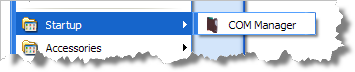
To launch the SERIP COM Manager when the computer starts, add the SERIP COM Manager application to the Windows Startup program group as shown below. Usually the installer does this already for you.
Right-click on the system tray icon to open the SERIP COM Manager context menu:
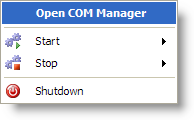
The context menu allows the main window of the SERIP COM Manager to be shown using the Open command. The Shutdown command closes all TCP/IP connections with serial device servers and terminates the SERIP COM Manager application. The Start and Stop commands can be used to selectively start and stop a COM port redirector process without opening main window.
|
|
Shutting down the SERIP COM Manager disconnects all serial device servers! |
SERIP COM Manager user interface
The main window of the SERIP COM Manager is shown below. It can be opened from the system tray icon’s context menu.
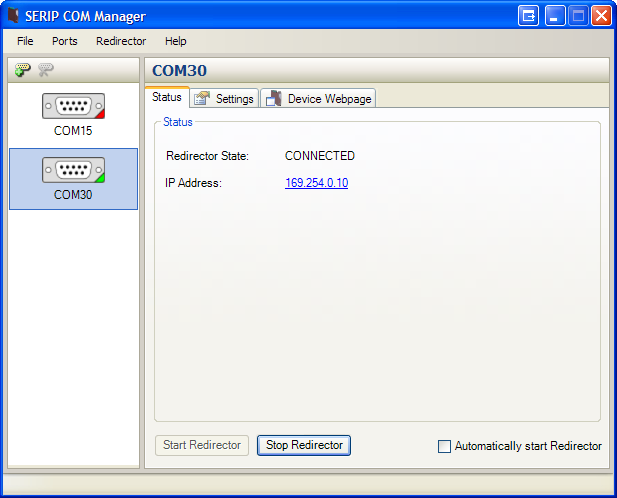
The COM port pane on the left side of the main window shows all installed virtual COM ports. The currently selected COM port is highlighted. A coloured triangle at the bottom right corner of the COM port icon indicates the status of redirector process. Red indicates stopped, yellow indicates connecting or idle state and green indicates connected state.
On the right hand side of the main window a tabbed pane shows the current redirector status, redirector configuration information and the web interface of the remote device server.
You can use the
 toolbar button
to add a new virtual COM port or
toolbar button
to add a new virtual COM port or
 to delete the currently selected port.
|
|
A port can only be deleted if the associated redirector process is in STOPPED state! |
With a right mouse click on a COM port a context menu can be opened. From the context menu a virtual COM port can be started, stopped or removed:
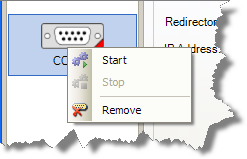
Status pane
The status of a serial port redirector process can be monitored on the status pane.
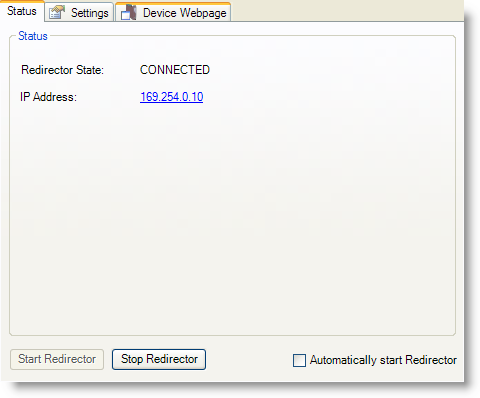
- Redirector State
-
Can be any of these states:
- STOPPED
-
The redirector process has not been started. Click Start Redirector to start.
- CONNECTED
-
The redirector process has been started and a successful connection to the SERIP-100 device server has been established.
- IDLE
-
The redirector has been started and is ready for a connection request.
- Starting
-
The redirector is in the process of starting up.
- Connecting
-
The redirector process has been started and tries to establish a connection with the SERIP-100 device server.
- ERROR
-
An error within the redirector process occurred. Check the status line for more details about the error.
- IP Address
-
Lists the IP address to be used for a connection if in client mode or the IP address of the connected client if in server mode.
- Start Redirector
-
Starts the redirector process. Once started, the virtual COM port is connected with the serial device server.
- Start Redirector
-
Stops the redirector process and closes the TCP/IP connection with the serial device server.
- Automatically start Redirector
-
Check this box if the redirector process shall be started without user intervention upon launch of the SERIP COM Manager.
Settings pane
Below is a sample window of the SERIP COM Manager settings pane.
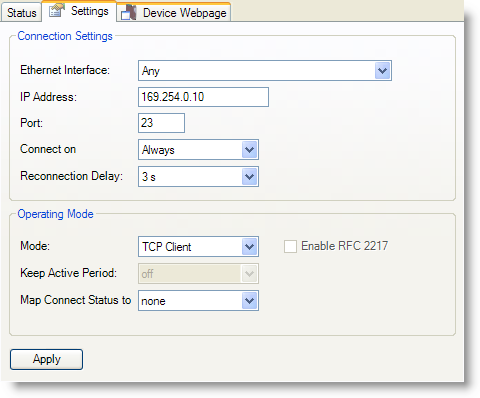
- Ethernet Interface
-
Usually set to Any but can be changed to use only a specific Ethernet card with the SERIP-100 device server.
- IP Address
-
Enter here the IP address of the SERIP-100 device server. This value is pre-set to be the default IP address 169.254.0.10 of the SERIP-100 device server
- Port
-
Each serial port on the same serial device server must use a different TCP or UDP port number.
- Connect on
-
It is possible for the redirector process to connect depending on the status of a modem control line of the virtual COM port. This could for example be set to DTR so the connection is only established when the application opens the COM port and disconnected when it closes the COM port.
- Reconnection Delay
-
Delay time between connection attempts. Setting is only available in client mode.
- Mode
-
This mode must match the opposite of the mode setting of the SERIP-100 device server. The default is TCP client.
- Keep Active Period
-
Can only be activated in Telnet modes. Sends NOP Telnet commands to monitor the health status of the connection and avoid disconnection due to inactivity.
- Map Connection Status to
-
The TCP connection status can be indicated on one of the modem status lines of the virtual COM port. That way the application software using the COM port knows whether a connection is established or not.
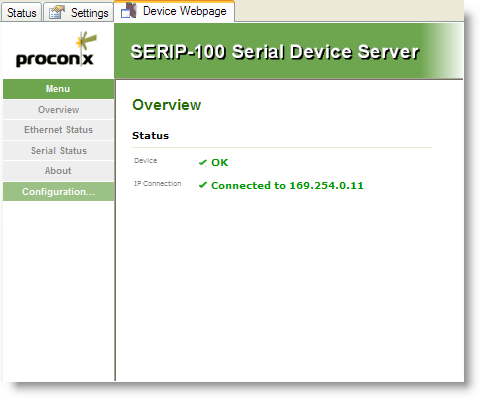
Device Webpage pane
The Device Webpage tab offers convenient access to the SERIP-100 device server’s web browser interface.
Redirecting the virtual COM port to a SERIP-100 serial device server
If the SERIP COM Manager is not already running, launch it from the Windows start menu otherwise right-click on the SERIP COM Manager icon in the Windows system tray and select the Open SERIP COM Manager command to launch it.
-
from the list on the left.
-
Make sure the redirector process is in STOPPED state. If not click the Stop Redirector button.
-
Click on the Settings tab.
-
Enter the IP address of your SERIP-100 device server.
-
Press the Apply button to configure the IP address.
-
Check that the Port and Mode settings match what you have configured on the device server. You can click on the Device Webpage tab to verify and change the settings of the device server.
-
Press the Apply button again to store the settings.
-
Click on the Status tab and click the Start Redirector button to start the redirector. If you want the COM port automatically connect to your device server every time the computer is started, check the Automatically start Redirector box.
-
The coloured indication triangle of the COM port icon on the left pane should change colour from red (stopped) to yellow (started) and then to green (connected).
-
The virtual COM port is ready to be used.
Decommissioning
Before disconnecting the SERIP-100 unit please follow the rules in [Safety].
Disconnecting
|
|
|
Disposal

|
This product must be disposed of at a specialized electronic waste recycling facility. Do not dispose of in domestic waste. |
Appendix A: Specifications
|
Product name
|
SERIP-100 |
Interfaces |
|
Ethernet |
1 |
Serial ports |
1, software configurable as either 1 x RS-232 or 1 x RS-485 or 1 x RS-422 |
User interface |
|
LED indicators |
Power (green), Ethernet link (green), 2 status (bi-color red/green) |
Monitoring & configuration |
Web browser based |
Diagnostic |
|
High availability features |
Watchdog supervision, brown-out detection |
Serial Port RS-232 interface |
|
Connector |
male 9-pin D-sub, DTE, EIA-574 pin-out |
Physical layer |
EIA-232-F |
Isolation |
non-isolated |
Signals |
RXD, TXD, RTS, CTS, DTR, DSR, DCD, RI |
Speed |
300, 600, 1200, 2400, 4800, 9600, 19200, 57600, 115200 bps |
Serial Port RS-485/RS-422 interface |
|
Connector |
3.81 mm 6-pin pluggable terminal block header |
Physical layer |
EIA-485-A, 2-wire or 4-wire |
Isolation |
non-isolated |
Speed |
300, 600, 1200, 2400, 4800, 9600, 19200, 57600, 115200 bps |
Max. number of nodes |
32 |
Ethernet port |
|
Connector |
8-pin RJ-45 socket for Cat 5 UTP |
Physical & Data Link Layer Layer |
IEEE 802.3i 10BASE-T |
Isolation |
1.5 kV galvanic |
Speed |
10 Mbit/s |
Max. cable length |
100 m (328 ft) |
Ethernet frame types |
802.3 |
Protocols |
TELNET (RFC 854, RFC 855, RFC 2217), HTTP, IP, TCP, DHCP, NBNS, ARP |
Concurrent connections |
1 virtual serial port, 2 HTTP |
Power supply |
|
Connector |
3.81 mm 2-pin pluggable terminal block header |
Voltage |
10-30 V DC |
Current |
30 mA typical @ 24 V DC |
Intrinsic consumption |
750 mW |
Electromagnetic compatibility |
|
Emissions (radiated and conducted) |
AS/NZS CISPR 22 / EN 55022 (Class A) |
Immunity |
EN 55024 |
Electrostatic discharge |
EN 61000-4-2 |
Radiated RF |
EN 61000-4-3 |
Fast transients |
EN 61000-4-4 |
Conducted RF |
EN 61000-4-6 |
Enclosure |
|
Material |
Self-extinguishing PC/ABS blend (UL 94-V0) |
Mounting |
35 mm DIN rail (EN 60715) |
Classification / Type rating |
IP 20 / NEMA Type 1 |
Cooling |
Convection |
Environmental |
|
Operating temperature |
0 to 60 °C / 32 to 140 °F |
Storage temperature |
-25 to 85 °C / -13 to 185 °F |
Humidity rating |
10 to 95% relative humidity, non condensing |
Operating ambience |
Free from corrosive gas, minimal dust |
Physical |
|
Dimensions |
101 x 22.5 x 120 mm / 3.98 x 0.886 x 4.72 in |
Weight |
0.12 kg / 0.265 lb |
Compliance |
|
Australia |
C-Tick |
Europe |
CE, RoHS |
USA |
FCC Part 15 (Class A) |
Canada |
ICES-003 (Class A) |
Dimensions
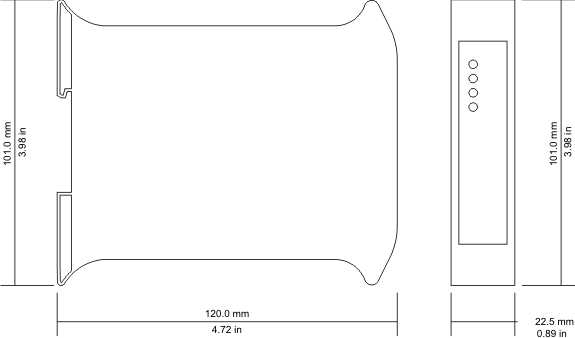
Document revision history
|
2009-12-02
|
Initial Release |
|
2011-04-06
|
Editorial Changes. |
No part of this material may be reproduced or transmitted in any form or by any means or used to make any derivative work without express written consent from the copyright holders.
proconX is a trademark of proconX Pty Ltd. Windows is a registered trademark of Microsoft Corporation in the United States and other countries. All other product and brand names mentioned in this document may be trademarks or registered trademarks of their respective owners.
proconX Pty Ltd makes no warranty for the use of its products, other than those expressly contained in the Company’s standard warranty which is detailed in the Terms and Conditions located on the Company’s Website. The Company assumes no responsibility for any errors which may appear in this document, reserves the right to change devices or specifications detailed herein at any time without notice, and does not make any commitment to update the information contained herein. No licenses to patents or other intellectual property of proconX are granted by the Company in connection with the sale of proconX products, expressly or by implication. proconX products are not authorized for use as critical components in life support devices or systems.
We provide an electronic support and feedback system for our proconX products. It can be accessed through the following web link:
Your feedback and comments are always welcome. It helps improving this product.
For further information about the SERIP-100 product or this document please contact us at:
proconX Pty Ltd
Unit 7 / 14 Argon St
Sumner QLD 4074
Australia
Tel +61 7 3376 3911
Fax +61 7 3102 9206
Website: http://www.proconx.com/serip100